
Using Keytiles TileView on unattended machines
Here are some tips how to make this done!
Content of this page
Avoid periodic logins
Due to security considerations Keytiles requires re-login again and again periodically (currently it is one week). For users it is not a big deal. However it is definitely a pain in the ass in use cases when you are projecting out Keytiles screens using an unattended machine. You can solve this easily. but
You will sacrifice the above security barrier by doing this! So follow the below steps carefully to at least minimize the risk!
Follow these steps to get this done:
- Create a "technical user" account on the System UI
Just simply register one user. This account should be used only in this use case and you should not share or publish the login info of this account! - Grant "view" permission to this user
Never grant "admin" permission just "view"! - Now log in with this user account
using your browser into the System UI - Open the "developer tools" panel of your web browser!
Normally this happens with pressing F12 (Chrome and Edge) - Find the cookie named "_kt_authToken" and copy its value to the clipboard!
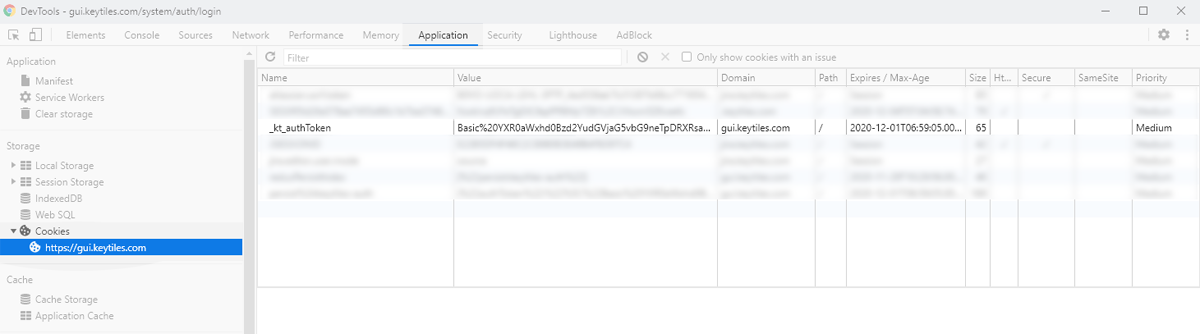
- Add this value to the URL of the TileView!
When you open the TileView you will get a URL similar to this. Just add the "authToken" query parameter (see highlighted below) with the value on your clipboard!
https://gui.keytiles.com/realtime/ui/start-ui.html?container_id=xxxxxxxxxxxxx-yyyyy&authToken=Basic%20YXR0aWxhd0......NzM#maxTileCount=80||queryRange=tMinusMinutes%3D10||lifetimeHours=24||.... - Test it! The URL should work without asking for any login
The URL we just created grants permission to get into the view for everyone who knows it for indefinite time! Make sure this URL is not indexed accidentally by search engines so do not publish this on any public web pages!
If you feel the URL might be exposed then change password of your technical user and re-capture the new auth token!
Due to the unsecure nature (see above) these request will generate a Warning in a standard browser Alert (to ensure you can not easily skip it) for you. Which might cause you issues in a fully unattended setup. So to get rid of that warning (risks understood and acknowledged at this point right?!) you can add a skipAuthTokenWarning=true parameter to the URL.
Auto-rotating different screens
This is needed and useful especially when Keytiles is beamed out. Here you find how to set this up: Auto rotating screens